

The widget and JavaScript API
The widget script adds the portal to your page as a floating chat bubble or an inline panel, and gives your page a small JavaScript API: open and close it, prefill the composer, sign out, tell the agent what the person is looking at, and listen to what happens in the chat. This page covers the script, every option, every method and event, framework examples, and the plain-iframe protocol for pages that cannot use the script.
Enterprise module
Embedding is part of the enterprise portals module — see Embedding a portal.
Load the script
<script src="https://console.example.com/api/embed/portal.v1.js"></script>| Address | Cache | Use |
|---|---|---|
GET /api/embed/portal.v1.js | public, max-age=3600, with an ETag | The versioned file. Use this one. |
GET /api/embed/portal.js | public, max-age=300 | The same file, for pages that follow the current major version. |
The script is public and the same for every workspace — it carries nothing per tenant. It is served with Access-Control-Allow-Origin: *, so a crossorigin="anonymous" tag works. A new major version gets a new file name; v1 only changes in ways that keep existing pages working. Loading it twice is harmless — the second copy does nothing.
Subresource integrity
You can add an integrity hash, but it pins one exact build of a file that may change compatibly inside v1. Use it only if you copy the file to your own server (and then pass baseUrl, because the widget otherwise assumes the console lives where the script was loaded from).
The script defines one global, CognipeerPortal, with mount(options) and version.
Mount the widget
const assistant = CognipeerPortal.mount({
  portal: 'support',      // the portal's key
  tenant: 'acme',         // your workspace's slug
  mode: 'bubble',         // or 'inline' with container: '#assistant'
  getToken: async ({ reason }) => (await fetch('/api/cognipeer-token', { credentials: 'include' })).text(),
});mount returns the instance described below, or null (with a message in the browser console) when portal or tenant is missing, baseUrl is not an address, or inline mode has no container.
Options
| Option | Default | What it does |
|---|---|---|
portal | — (required) | The portal's key. |
tenant | — (required) | Your workspace's slug. The Embed tab prints it in every snippet. |
mode | bubble | bubble for the floating button and window, inline to fill an element of your page. |
container | — | Inline mode: an element or a CSS selector. The frame fills it (width 100%, height 100%, at least 320 px high), so give the container a height. |
baseUrl | Where the script was loaded from | The console's address. Only its origin is used. |
getToken({ reason }) | window.cpGetToken | Returns a promise of a fresh signed token. reason is initial the first time, then expiring, expired or rejected. A failing function is not called again for 3 seconds. |
token | — | A token you already hold, used once for the first sign-in. Every later token comes from getToken. |
useGlobalGetToken | true | Set false to ignore window.cpGetToken. |
agent | — | The key of an agent to open on. Ignored if the portal does not offer it. |
prompt | — | Text to put in the composer (at most 2000 characters). |
send | false | With prompt: send it at once. Honoured only when the portal's Chat features → Links that open a question → Send the question automatically is on. |
context | — | An object up to 8 KB about what the person is looking at. Unsigned. See Page context. |
locale | The portal's own language | en or tr (tr-TR is read as tr). Stays for the whole session, whatever language the portal itself is set to. |
theme | The portal's own scheme | light, dark or system. |
history | true | false hides the conversation history list. |
eventContent | Ids and sizes only | 'text' also puts the message text in the events (up to 4000 characters). |
tools | — | Handlers for the tools the portal declared for your page. See Tools in your page. |
remoteLook | true | false stops the bubble reading its look from the portal (see below). |
Bubble-only options (an administrator's Embed-tab values are the defaults; your own options win):
| Option | Default | What it does |
|---|---|---|
position | bottom-right | bottom-right or bottom-left. Always 20 px from the edges. |
launcherText | none | Words next to the icon. An empty string removes the portal's text. |
launcherIcon | chat | chat, sparkle or help. |
closeLabel | "Close chat" | The accessible label of the button while the chat is open. |
primaryColor | #10a37f | #RGB / #RRGGBB. Anything else is ignored. |
openOnLoad | false | Open the chat as soon as the page loads. |
preload | false | Create the frame at once, without opening it, so the first open is instant. |
width, height | 380, 600 | The open window, in pixels. On a phone it is full screen. |
zIndex | 2147483000 | The window's z-index; the button is one above. |
title | "Assistant" | The frame's title and the window's accessible name. |
Examples
Chat bubble
<script src="https://console.example.com/api/embed/portal.v1.js"></script>
<script>
  const assistant = CognipeerPortal.mount({
    portal: 'support',
    tenant: 'acme',
    mode: 'bubble',
    launcherText: 'Ask',
    getToken: async () => {
      const response = await fetch('/api/cognipeer-token', { credentials: 'include' });
      if (!response.ok) throw new Error('Could not get a token');
      return response.text();
    },
  });

  // Sign out of the chat when the person signs out of your application.
  document.querySelector('#sign-out').addEventListener('click', () => assistant.logout());
</script>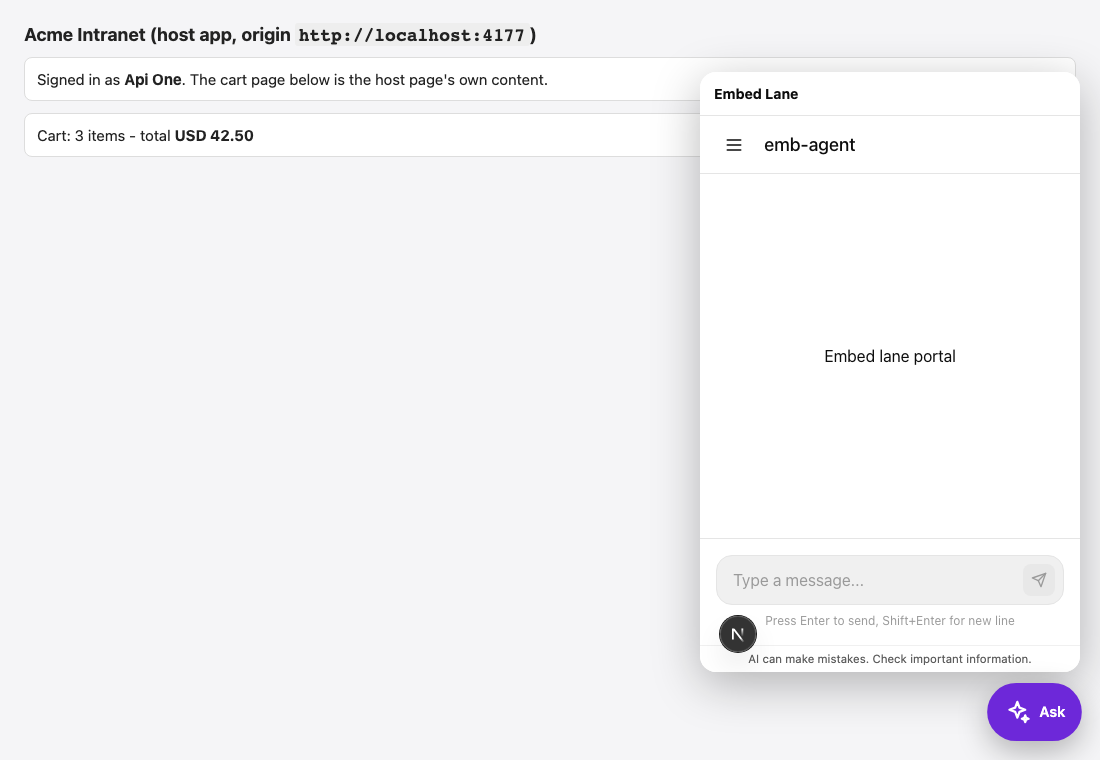
Inline panel
<div id="assistant" style="height: 600px"></div>
<script src="https://console.example.com/api/embed/portal.v1.js"></script>
<script>
  CognipeerPortal.mount({
    portal: 'support',
    tenant: 'acme',
    mode: 'inline',
    container: '#assistant',
    getToken: async () => (await fetch('/api/cognipeer-token', { credentials: 'include' })).text(),
  });
</script>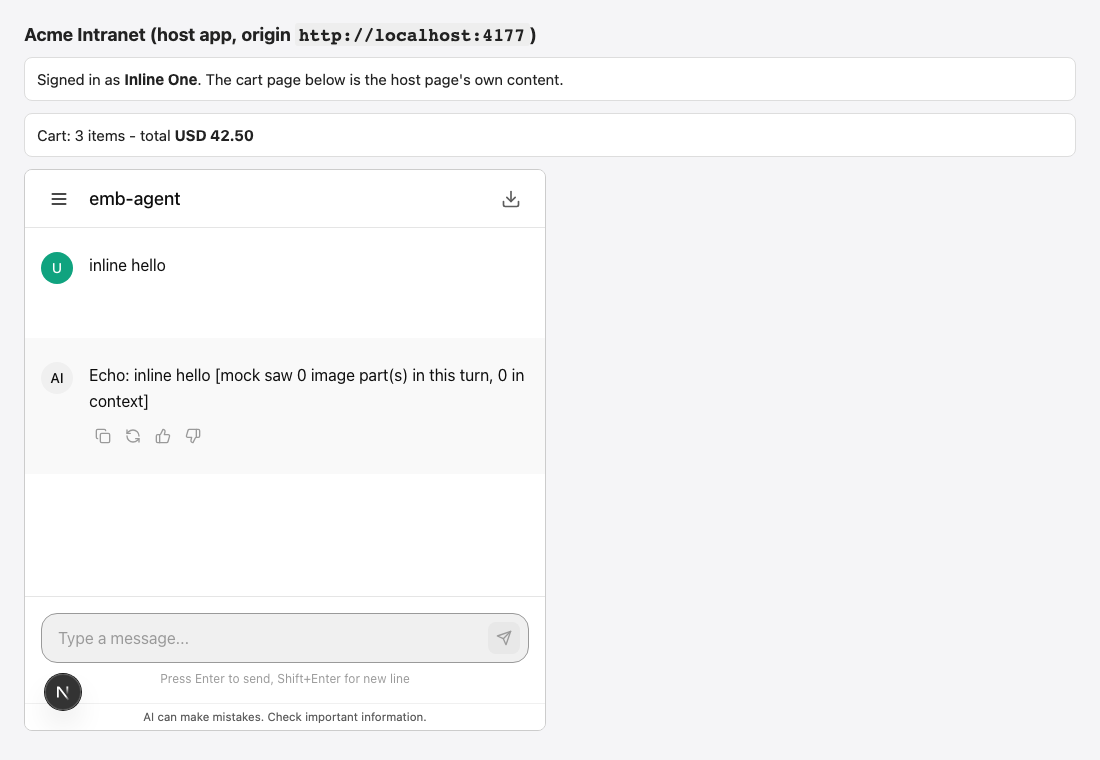
React
import { useEffect, useRef } from 'react';

const SCRIPT = 'https://console.example.com/api/embed/portal.v1.js';

function loadWidget() {
  if (window.CognipeerPortal) return Promise.resolve(window.CognipeerPortal);
  return new Promise((resolve, reject) => {
    const script = document.createElement('script');
    script.src = SCRIPT;
    script.async = true;
    script.onload = () => resolve(window.CognipeerPortal);
    script.onerror = () => reject(new Error('Could not load the assistant'));
    document.head.appendChild(script);
  });
}

export function Assistant() {
  const container = useRef(null);

  useEffect(() => {
    let instance;
    let cancelled = false;
    loadWidget().then((CognipeerPortal) => {
      if (cancelled || !container.current) return;
      instance = CognipeerPortal.mount({
        portal: 'support',
        tenant: 'acme',
        mode: 'inline',
        container: container.current,
        getToken: async () => (await fetch('/api/cognipeer-token', { credentials: 'include' })).text(),
      });
    });
    return () => { cancelled = true; instance?.destroy(); };
  }, []);

  return <div ref={container} style={{ height: 600 }} />;
}The same pattern works for any framework: mount in the "mounted" hook, destroy() in the "unmounted" one. For a bubble that should follow the person across routes, mount once at the application's root, not per route.
Declarative form
For pages that cannot run script of their own, put the options on the script tag. The token function is window.cpGetToken:
<script>
  window.cpGetToken = async () => (await fetch('/api/cognipeer-token', { credentials: 'include' })).text();
</script>
<script src="https://console.example.com/api/embed/portal.v1.js"
data-portal="support" data-tenant="acme" data-mode="bubble"></script>The instance is available as window.cognipeerPortal. Supported attributes: data-portal, data-tenant (both required), data-mode, data-base-url, data-agent, data-prompt, data-locale, data-theme, data-position, data-launcher-text, data-launcher-icon, data-primary-color, data-title, data-container (a selector, for inline), data-open-on-load="true", data-width, data-height. Options that need code — tools, context, history, eventContent, send, preload, token — need CognipeerPortal.mount.
The instance
| Method | What it does |
|---|---|
open(), close(), toggle() | Show or hide the bubble's window. Hiding keeps the conversation running. No-ops in inline mode. |
isOpen() | Whether the window is open (always true in inline mode until destroyed). |
setToken(token) | Hands the chat a fresh token right now. Returns false for an empty token or one over 8192 characters. Before the frame is ready it is kept for the first sign-in. |
prefill(text, { send }) | Opens the bubble and puts the text in the composer; send: true sends it. At most 8000 characters; returns false otherwise. |
setContext(object or null) | The same as the context option; null clears it. Returns false for anything that is not a plain object of at most 8 KB. |
logout() | Ends the embedded session on the server and returns the chat to its signed-out state. Call it when the person signs out of your application. |
on(event, fn), off(event, fn) | Subscribe and unsubscribe. Both return the instance. A listener that throws is logged, not propagated. |
destroy() | Removes the frame, the button and every listener, and emits destroy. |
assistant
  .on('ready', ({ user }) => console.log('Signed in as', user?.email))
  .on('message:completed', ({ conversationId, messageId }) => analytics.track('assistant_answer', { conversationId, messageId }))
.on('auth:error', ({ code, reference }) => console.warn('Sign-in problem', code, reference));Events
Events carry ids and sizes, not message text, unless you ask for eventContent: 'text'. A frame-originated event arrives as a cp:event message; the widget re-emits it by name.
| Event | When | Data |
|---|---|---|
ready | The person is signed in and the chat is on screen (once per sign-in). | { user: { name, email } } or { user: null } |
open, close | The bubble's window opened or closed. | {} |
auth:required | No token arrived: your getToken returned nothing, or the frame waited 10 seconds without one. | { reason: 'no_token' } |
auth:error | A token was refused, or the session ended. | { code, status?, reference? } — code is an exchange code, network_error, invalid_response, or session_expired. reference is the code to quote to an administrator. |
conversation:started | A new conversation was created. | { conversationId } |
message:sent | The person sent a message. | { conversationId, messageId, length, text? } |
message:completed | An answer finished. | { conversationId, messageId, length, text? } |
action:required | The agent is waiting: an approval, a question, or a call to a tool of your page. | { conversationId, actionId, kind, tool? }; for a page tool { kind: 'client_tool', actionId, tool } |
action:resolved | That request was answered. | { conversationId, actionId, kind, decision? }; for a page tool { kind: 'client_tool', actionId, tool, ok, durationMs } |
limit:reached | A limit stopped the person. | { kind }: budget (with conversationId), rate_limited, quota_exceeded, too_many_conversations, message_too_long, budget_reached |
error | Anything else went wrong in the chat. | { code?, message } |
destroy | After destroy(). | {} |
How the bubble behaves
- Lazy. In bubble mode the frame is not created — and your
getTokenis not called — until the person opens the bubble for the first time. Usepreload: trueoropenOnLoad: trueto load it earlier. - The button says what pressing it does. Its own icon and words while the chat is closed; a cross and "Close chat" while it is open.
- Unread dot. When an answer finishes while the window is closed, the button shows a dot until it is opened.
- Keyboard.
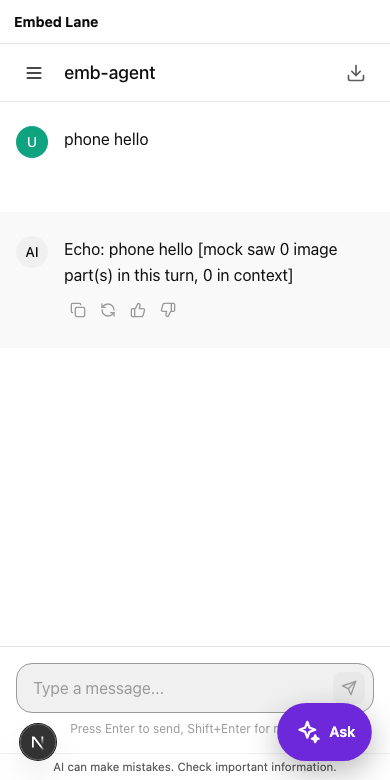
Escapecloses the window when focus is on your page; the window is adialogwith an accessible name. - Phones. Below 520 px wide the open chat fills the screen and the button is hidden behind it. The chat then has its own close button in its header, which asks your page to close the window (
cp:close). - Look from the portal. In bubble mode the widget asks the portal for the look an administrator set (
GET /api/portal/<key>/embed/widget?tenant=<slug>) — a request only your allowed sites can read, answered from a one-minute cache. It waits at most 1.2 seconds for it; if it does not arrive, the defaults are used.remoteLook: falseskips the request. - Language and theme.
localeandthemecome from your page; without them the portal's own language and scheme apply.
Page context (unsigned)
context / setContext tell the agent which page the person is on — "order 4711 is open". It is not signed: it is whatever your page's script says, so the agent receives it as run metadata uiContext next to uiContextUntrusted: true and must treat it as the page's word, never as a fact or a reason to allow something.
assistant.setContext({ page: 'order', orderId: 4711, status: 'shipped' });
// later, on another page:
assistant.setContext(null);What gets through is bounded: a plain object, at most 8 KB of JSON, nested at most 6 levels, with __proto__, constructor and prototype keys dropped at every level. Anything else is dropped whole. Only embedded sessions can send it. Put anything the agent must be able to rely on in the signed token's ctx claim instead — see Sign people in.
Deep links: open on a question
agent, prompt and send open the chat on an agent with a question typed in:
CognipeerPortal.mount({ portal: 'support', tenant: 'acme', getToken, agent: 'refund-helper', prompt: 'Where is my refund?' });

// or later, from a button on the page:
assistant.prefill('Where is my refund?', { send: false });Sending automatically (send: true, or prefill(…, { send: true })) works only when the portal allows it under Chat features → Links that open a question; otherwise the text is only typed in and the person decides. Turn it on only for links you control.
A plain iframe
If you cannot load the script, frame the chat yourself and answer its messages.
<iframe id="assistant" title="Assistant" allow="clipboard-write"
        style="width:100%;height:600px;border:0"
src="https://console.example.com/api-embed/portal/support?tenant=acme&origin=https%3A%2F%2Fintranet.example.com&mode=inline"></iframe>| Query parameter | Required | Meaning |
|---|---|---|
tenant | Yes | Your workspace's slug. |
origin | Yes | The origin of your page, exactly as listed under Allowed sites. |
mode | No | inline hides the frame's title bar and close button; the default, bubble, shows them. |
agent, q, send | No | The deep link: an agent key, a prompt, and 1 to send it (when the portal allows it). |
lang, theme | No | en or tr; light, dark or system. |
hist | No | 0 hides the history list. |
ec | No | text puts message text in the events. |
Every message is { type: "cp:…", v: 1, … }, sent with postMessage to the console's origin — never * — and accepted only from the frame's contentWindow and the console's origin.
| Direction | Message | Meaning |
|---|---|---|
| frame → page | cp:ready | The chat loaded and wants a token. Repeated every 500 ms (up to 60 times) until you answer. |
| frame → page | cp:token_request { reason } | A fresh token is needed: expiring, expired or rejected. |
| frame → page | cp:event { event, data } | One of the events. |
| frame → page | cp:tool_call { callId, name, args } | The agent calls a tool of your page. |
| frame → page | cp:close | The person pressed the chat's own close button. |
| page → frame | cp:auth { token } | A signed token (at most 8192 characters). Also fine to send unasked. |
| page → frame | cp:tool_result { callId, ok, output or error } | The answer to a tool call. |
| page → frame | cp:prefill { text, send? } | Put text in the composer. |
| page → frame | cp:context { context } | Unsigned page context (an object up to 8 KB, or null). |
| page → frame | cp:logout | Forget the session and revoke it on the server. |
A minimal host:
<script>
  const CONSOLE = 'https://console.example.com';
  const frame = document.getElementById('assistant');
  const reply = (message) => frame.contentWindow.postMessage({ v: 1, ...message }, CONSOLE);   // never '*'
  const tools = { open_ticket: async ({ id }) => { location.hash = `#/tickets/${id}`; return { opened: id }; } };

  window.addEventListener('message', async (event) => {
    // Only the frame you made, from the console's origin.
    if (event.source !== frame.contentWindow || event.origin !== CONSOLE) return;
    const m = event.data;
    if (!m || m.v !== 1) return;

    if (m.type === 'cp:ready' || m.type === 'cp:token_request') {
      const token = await (await fetch('/api/cognipeer-token', { credentials: 'include' })).text();   // your server signs it
      reply({ type: 'cp:auth', token });
    }
    if (m.type === 'cp:tool_call') {
      try { reply({ type: 'cp:tool_result', callId: m.callId, ok: true, output: await tools[m.name](m.args) }); }
      catch (error) { reply({ type: 'cp:tool_result', callId: m.callId, ok: false, error: String(error.message || error) }); }
    }
    if (m.type === 'cp:event') console.log(m.event, m.data);
  });
</script>When you write the iframe yourself, add the same sandbox the widget uses — allow-scripts allow-same-origin allow-forms allow-popups allow-popups-to-escape-sandbox allow-downloads allow-modals — which gives the chat what it needs and no top navigation.
What the person sees inside the frame
The frame is the portal's chat. Whatever an administrator configured on the portal applies inside it, exactly as on the portal page: the terms of use (accepted inside the frame), announcements, the AI label and legal links, message actions, feedback, export, history actions and notifications. The widget's own options only decide the frame around it. The frame shows no sign-out button and no account header — your application owns those.