

Embedding a portal
A portal is a chat page over a set of published agents, reachable at /p/<key>. Embedding puts that same chat inside your application — as a floating chat bubble, as a panel on one of your pages, or as a plain iframe — and signs the person in without a second login. Your server tells the portal who the person is by signing a short-lived token; the portal checks the signature, finds (or creates) the matching account, and opens a session for them.
Enterprise module
Portals, and embedding with them, are part of the enterprise edition. The portal screens exist in the community build but ask for an upgrade, and the /api/portals/* and /api/portal/* routes only answer for a workspace with an active enterprise licence (HTTP 402 with requiresEnterprise: true otherwise). See Licensing.
Embedding is off until an administrator turns it on, and nothing about a portal that never used it changes. This guide is the developer's side; the administrator's summary of the Embed tab is in Administering portals.
When to embed
| You want… | Use |
|---|---|
| People to open a chat page of their own and sign in to Console (or through SSO) | The portal link, /p/<key>. No code. |
| The assistant inside your intranet, ERP or product, for people who are already signed in there | Embedding. Your application is the identity provider; nobody sees a Console login. |
| Your own chat UI, your own look, no iframe | The agents client API with an API token. |
Embedding is for people your application has signed in. There is no anonymous mode: every embedded session belongs to a real account (a member or an external account) so that access rules, limits, history and audit all work the way they do for any other person.
How it works
   YOUR SERVER              HOST PAGE              FRAME (iframe)                  CONSOLE
        │                       │                         │                           │
        │                       │─── creates the frame ───►                           │
        │                       ◄─────── cp:ready ────────│                           │
        ◄────── GET token ──────│                         │                           │
        │──── signed token ─────►                         │                           │
        │                       │─── cp:auth { token } ───►                           │
        │                       │                         │── POST …/embed/session ───►
        │                       │                         ◄──── { sessionToken } ─────│
        │                       │                         │─── chat, Bearer cp_es_ ───►
        │                       ◄─────── cp:event ────────│                           │
│ │ │ │The handshake, step by step:
- Your page loads the widget script and calls
CognipeerPortal.mount(...). In bubble mode nothing else loads until the person opens the bubble. - The widget creates the frame (an iframe on the Console origin). The frame posts
cp:readyto your page and repeats it every 500 ms until your page answers. - The widget calls your
getToken()function. Your function asks your server, which signs a token for the person who is signed in to your application. - The widget posts
cp:auth { token }to the frame — to the Console origin only, never*. The token never travels in a URL. - The frame sends
POST /api/portal/<key>/embed/sessionwith{ token }— no cookies. The console verifies the signature and claims, takes the token's single-usejti, finds or creates the person, and answers{ sessionToken, expiresAt, user }. - The frame keeps the session token in memory only and sends it as
Authorization: Bearer cp_es_…on every chat request. Shortly before the session ends it asks your page for a fresh token and renews without reloading the chat.
Why a bearer token and not a cookie
Browsers increasingly block or partition cookies for pages inside a frame of another site — Safari does by default. The embedded chat therefore never uses cookies at all: not for the exchange, not for the chat. See Hosting, CSP and security.
The pieces
| Piece | Address | What it is |
|---|---|---|
| Embed tab | Operate → Portals → your portal → Embed | Where an administrator turns embedding on and sets sites, signing, identity mapping, session rules, the bubble's look and the page tools. Generates copy-ready snippets. |
| Widget script | GET /api/embed/portal.v1.js | Public, static, the same for every workspace. Adds the bubble, the inline panel and the JavaScript API. |
| Frame | /api-embed/portal/<key>?tenant=<slug>&origin=<host origin> | The chat page your page frames. The only page of the console that may be framed, and only by the sites you list. |
| Token exchange | POST /api/portal/<key>/embed/session?tenant=<slug>&origin=<host origin> | Public by design — the signed token is the credential. Answers a session or a refusal with a reference code. |
| Try it page | /dashboard/portals/<id>/embed-test | A test page that plays the part of your application. Opened from the Embed tab. |
Before you start
- An enterprise licence on the workspace.
- A portal that is enabled, with at least one published agent, and a decision about who may use it (the access list still applies to embedded people — see Identity mapping and access). Creating and configuring the portal itself is covered in Portals and Administering portals.
- A server of your own that can sign a token for the person who is signed in. This is not optional: the signing secret or private key must never reach a browser.
- Your workspace slug, the short name in your workspace address. The Embed tab prints it inside every snippet.
- A host page served over HTTPS.
http://localhostworks as an allowed site only on development and self-hosted installations.
Quick start
About fifteen minutes with an existing portal.
1. Open the Embed tab
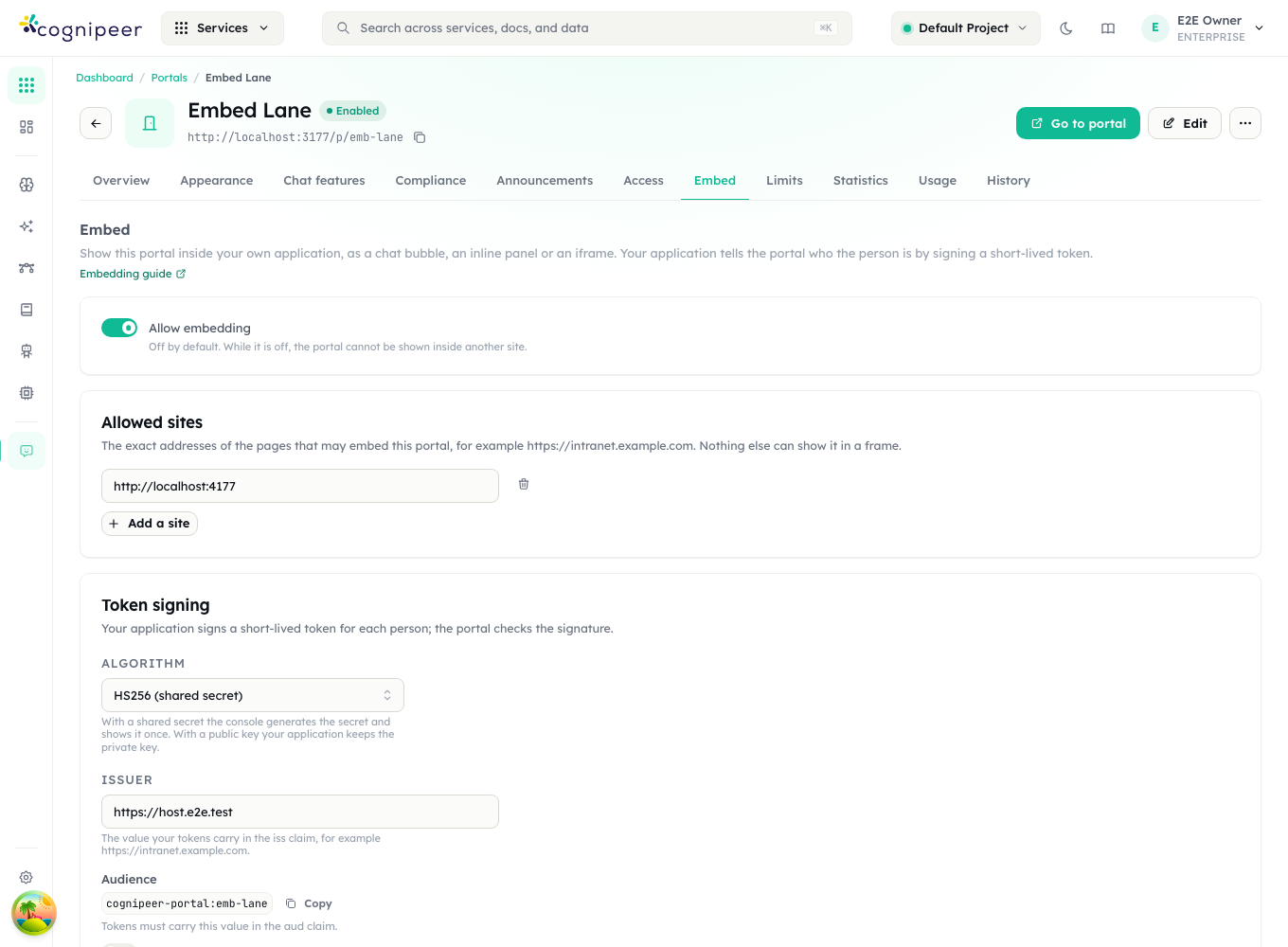
Go to Operate → Portals → your portal → Embed.
2. Choose where the portal may appear
Under Allowed sites, press Add a site and enter the exact address of the page that will embed the portal, for example https://intranet.example.com. No path, no wildcard, https only. List each site separately — up to 20.
3. Choose how your server proves who the person is
Under Token signing:
- Leave the algorithm on HS256 (shared secret) — the simplest option. (RS256 and ES256 keep the private key on your side; see Sign people in.)
- Enter the Issuer: the value your tokens will carry in
iss, for examplehttps://intranet.example.com. - Press Generate a secret. The console shows it once — copy it into your server's configuration now. You also see its key id,
sec_….
4. Decide who the token is
Under Who the token is, the defaults are the safe ones: people are matched by a verified email address, and a person nobody matches is refused. Change this only when you have read Identity mapping and access.
5. Turn it on
Switch Allow embedding on and Save. The console refuses to switch embedding on before it can work: at least one site, an issuer, and a secret (or a public key) must exist.
6. Mint tokens on your server
Add an endpoint that answers the signed-in person with a fresh token. Complete examples for Node.js, Python, Java (Spring) and .NET are in Sign people in: the identity token.
7. Try it before you touch your site
Press Open the test page (under Try it). It plays the part of your application — it can mint a test token with the portal's own secret or take a token you paste — and lists what the chat reports. The token is checked exactly like a real one.
8. Add the snippet to your page
The Embed tab's Add it to your page card offers the four snippets (chat bubble, inline panel, iframe, React) with your portal key, workspace slug and console address already filled in. The bubble snippet looks like this:
<script src="https://console.example.com/api/embed/portal.v1.js"></script>
<script>
  const assistant = CognipeerPortal.mount({
    portal: 'support',      // the portal's address (its key)
    tenant: 'acme',         // your workspace's slug
    mode: 'bubble',         // or 'inline' with container: '#assistant'
    getToken: async () => {
      const response = await fetch('/api/cognipeer-token', { credentials: 'include' });
      if (!response.ok) throw new Error('Could not get a token');
      return response.text();
    },
  });
</script>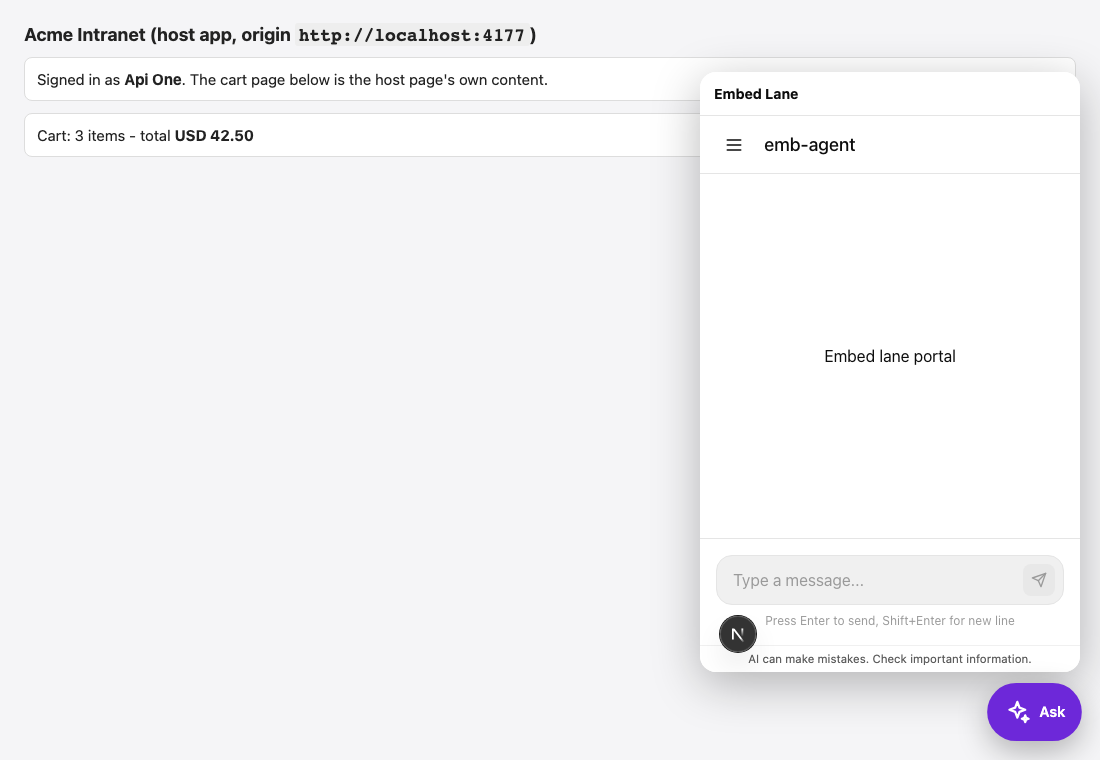
Open the page, press the button, and ask something. The widget exposes an object with open(), close(), prefill(), logout() and an event emitter — see The widget and JavaScript API.
Every setting on the Embed tab
| Setting | Default | Range and rules | What it does |
|---|---|---|---|
| Allow embedding | Off | Needs a site, an issuer and a key before it can be on. | Off: the frame refuses everyone and the exchange refuses every token. Switching it off ends every embedded session. |
| Allowed sites | None | Up to 20 exact origins. https only; http://localhost, http://127.0.0.1 and http://[::1] only on development and self-hosted installations. No path, query, credentials or wildcard. | The only pages that may frame the portal. Becomes the frame's frame-ancestors and is checked again at the exchange. |
| Algorithm | HS256 | HS256, RS256 or ES256 — exactly one. | The one algorithm tokens may use. Any other (and none) is refused. |
| Issuer | Empty | At most 512 characters; compared exactly. | The iss your tokens must carry. |
| Audience | cognipeer-portal:<key> | Read-only. | The aud your tokens must carry. |
| Require the workspace in the audience | Off | — | On: only cognipeer-portal:<slug>:<key> is accepted. For hosts that serve several workspaces with one key or issuer. |
| Longest token lifetime (seconds) | 300 | 30 to 600. | A token that lives longer than this (exp - iat), or is older than this, is refused. |
| Shared secrets | None | HS256 only. At most 2. | Generated by the console, shown once, stored encrypted. Two at once allow a rotation with no downtime. |
| Public key from | A pasted key | A pasted key, or a key set address (JWKS). RS256 / ES256 only. | Where the console gets the public key that checks signatures. |
| Public key (PEM) | Empty | PEM PUBLIC KEY or CERTIFICATE, at most 8192 characters. RSA at least 2048 bits for RS256; EC P-256 for ES256. A private key is refused. | The key that checks signatures. |
| Key set address | Empty | https address, at most 1000 characters. | The JWKS the console fetches and caches for ten minutes. |
| Match people by | By a verified email address | The identity in the token, a verified email address, or both. | How a person is found. |
| Trust the host's addresses without email_verified | Off | Only shown with the email option. | On: an email claim counts as verified even without email_verified: true. |
| When nobody matches | Refuse them | Refuse them, create a member account, or create an external account. | What happens to a person nobody matches. |
| People who arrive through the embed | Must be on the access list | Must be on the access list, or anyone your application has verified. | Whether the portal's access list still decides. |
| Groups | None | Up to 100 mappings. Value in the token at most 200 characters; console group name at most 120. | Puts people into groups named after values in the token's groups claim. |
| Session length (minutes) | 60 | 5 to 1440. | How long an embedded session lasts before the chat asks your page for a fresh token. |
| Tie a session to | Nothing (the token alone) | Nothing, the browser (user agent), or the network range of the address. | Makes a copied session token useless in another browser or network. |
| Position | Bottom right | Bottom right or bottom left. | Where the bubble sits. |
| Button icon | Chat | Chat, sparkle, help. | The bubble's icon. |
| Button text | None | At most 24 characters. | Words next to the icon. |
| Colour | The widget's green, #10A37F | #RGB or #RRGGBB. | The bubble's colour. |
| Open when the page loads | Off | — | Opens the bubble as soon as the page loads. |
| Window width / height (pixels) | 380 / 600 | 280 to 800 / 400 to 1000. | Size of the open bubble window (a phone gets the whole screen). |
| Tools in your page | None | Up to 20. | Tools the agent may call in your page. See Tools in your page. |
Every save accepts an optional reason, which goes to the portal's History tab with a before/after diff — secret values never appear in it, only their key ids.
Where to go next
| Read | When |
|---|---|
| Sign people in: the identity token | You are writing the server endpoint that signs tokens, or choosing between a shared secret and a key pair. |
| The widget and JavaScript API | You are adding the bubble, an inline panel or a plain iframe, and want the options, methods and events. |
| Identity mapping and access | You decide who a token's person is in the console, whether unknown people get accounts, and which groups they join. |
| Sessions, refresh and sign-out | You need session length, renewal, logout and revoking right. |
| Tools in your page | You want the agent to read from or act on your page. |
| Hosting, CSP and security | Your security team is reviewing it, or the frame will not load. |
| Troubleshooting and reference | Something is refused. Every refusal code, the audit reasons, limits and the admin API. |
What's new
- Embed with a host-signed identity. A portal can be shown in a bubble, an inline panel or an iframe on a site you list, with the person signed in by a token your server signs — HS256 with a console-generated secret, or RS256 / ES256 with a public key or JWKS.
- Shared verified-identity rules. The token checks and the matching of a person to an account are the platform's shared rules, the same ones used by API tokens that act for a user.
- Page tools. The agent can call tools you declare in your page, with timeouts, JSON Schema validation and optional per-call approval.
- Operated like everything else. Every exchange and refusal is audited, secrets rotate with no downtime, and administrators can sign everyone out.