

Files & artifacts
The work comes out as real files. Markdown, PDFs, Office documents, diagrams and React artifacts are written into a workspace file system the assistant navigates like you would — then synced, versioned and shared.
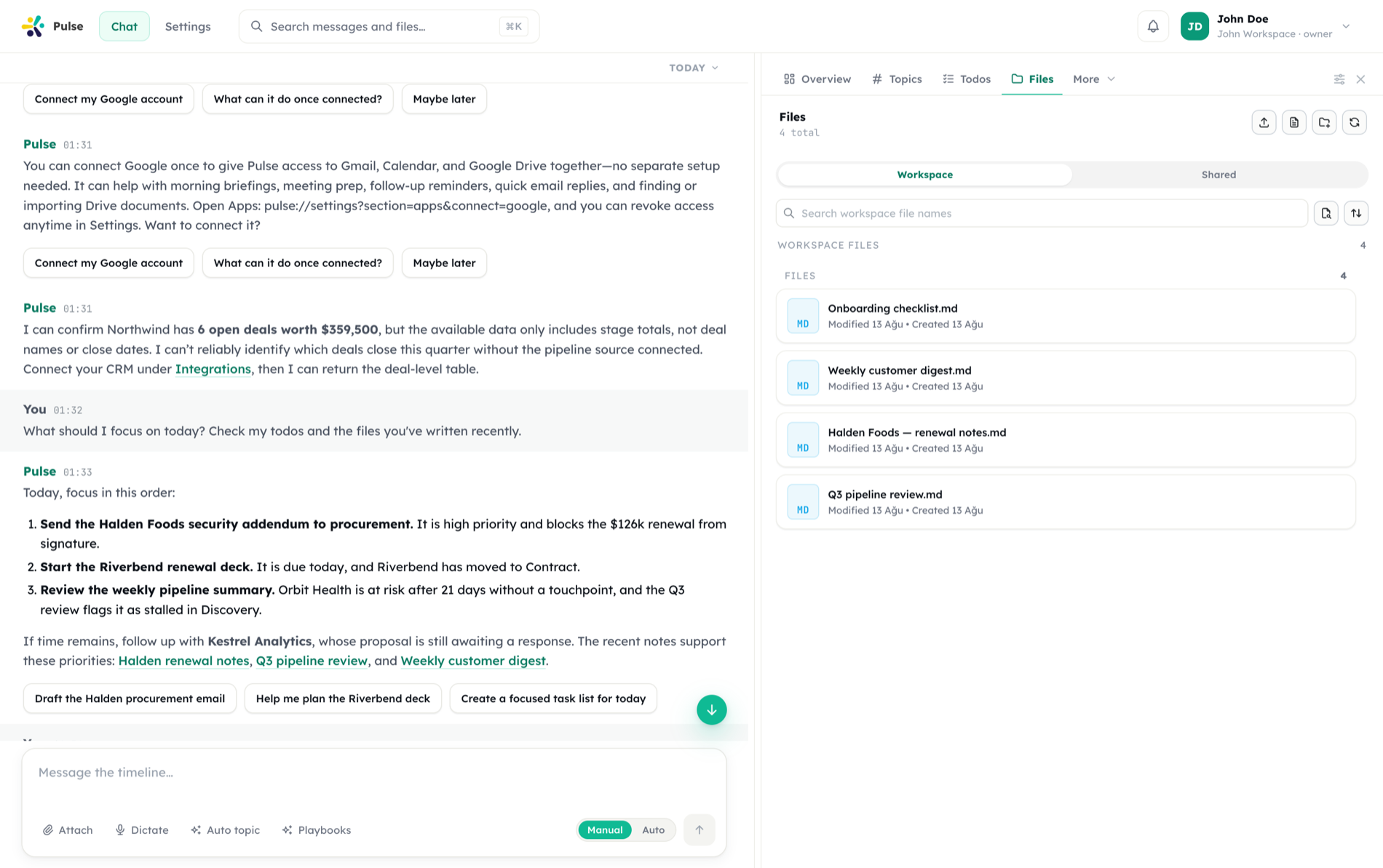
Generated, not pasted
The assistant writes documents straight into the workspace instead of dumping their contents into the chat.
Versioned
Revisions are kept, comparable, and restorable — so an overwrite is never the end of the earlier draft.
Shared on your terms
Granular sharing with a note, plus organization defaults for how work is allowed to leave the workspace.
Pulse gives every workspace a file system of its own. The agent reads and writes files there, generates rich artifacts directly into it, and keeps everything in sync across your devices.
The file system
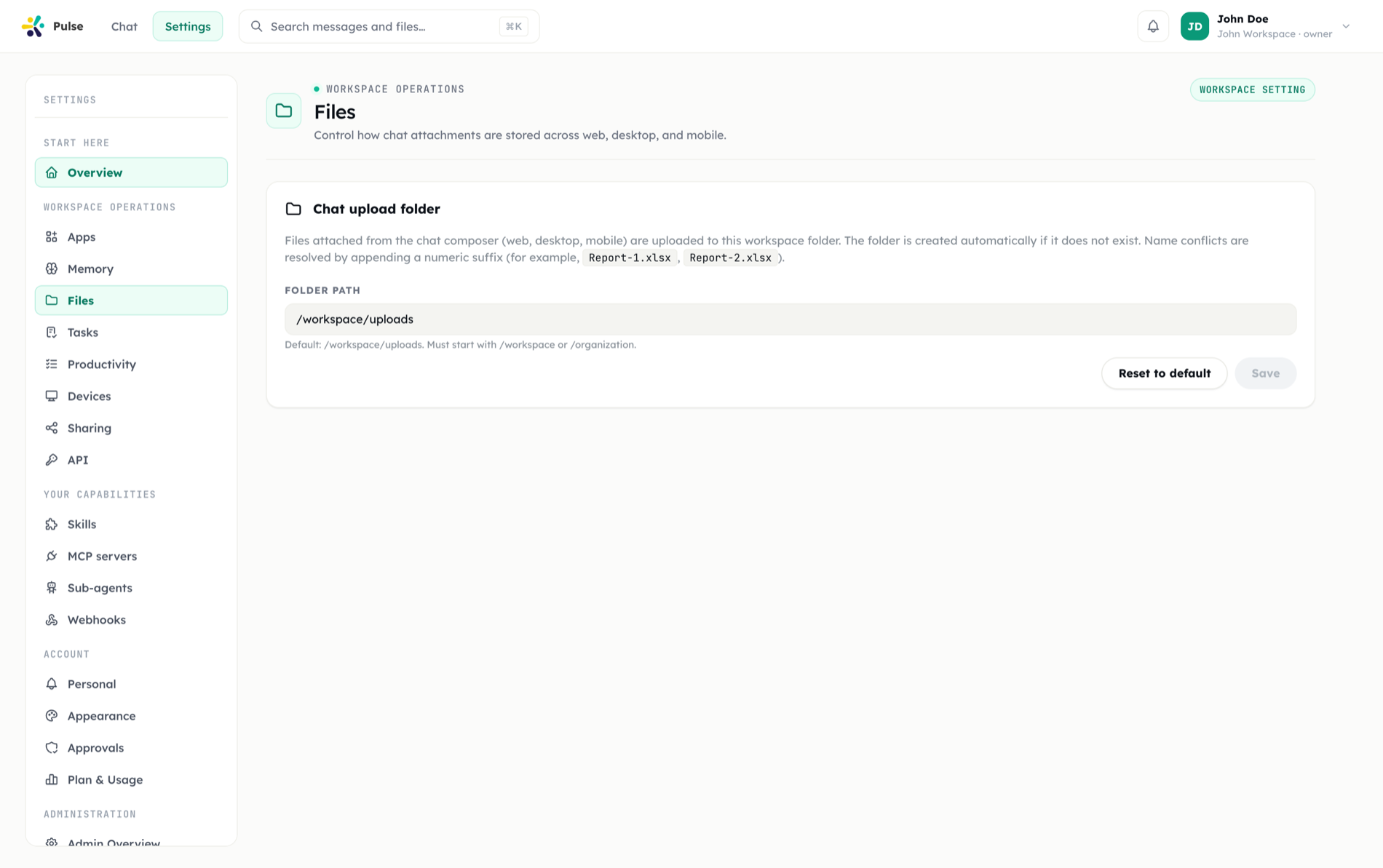
Files are organized in a workspace and organization-scoped file system with folders and virtual paths. The agent navigates these paths the way you would — reading inputs, writing outputs, and keeping related work grouped in folders.
Scoping matters: files belong to a workspace or organization, so access follows the same boundaries as the rest of Pulse. What the agent produces lands where your team can find it.
Native artifacts
The agent can generate artifacts natively, producing finished files rather than just text:
| Type | Output |
|---|---|
| React component | Interactive UI component |
| Markdown | Formatted documents |
| Portable documents | |
| Word | .docx documents |
| PowerPoint | .pptx presentations |
| Excel | .xlsx spreadsheets |
| draw.io | Editable diagrams |
These come from the document and web artifact builder skills. Ask for a report, a deck, or a diagram and the agent builds the actual file, saved into the workspace file system.
It works in the other direction too: the agent can open files you already have and reason over them. Ask questions of an Excel workbook and it analyzes the actual data — and can answer with native Excel charts written into the workbook (editable in Excel, not screenshots) or chart images ready to drop into a report or deck. See the spreadsheet use case for a full walkthrough.
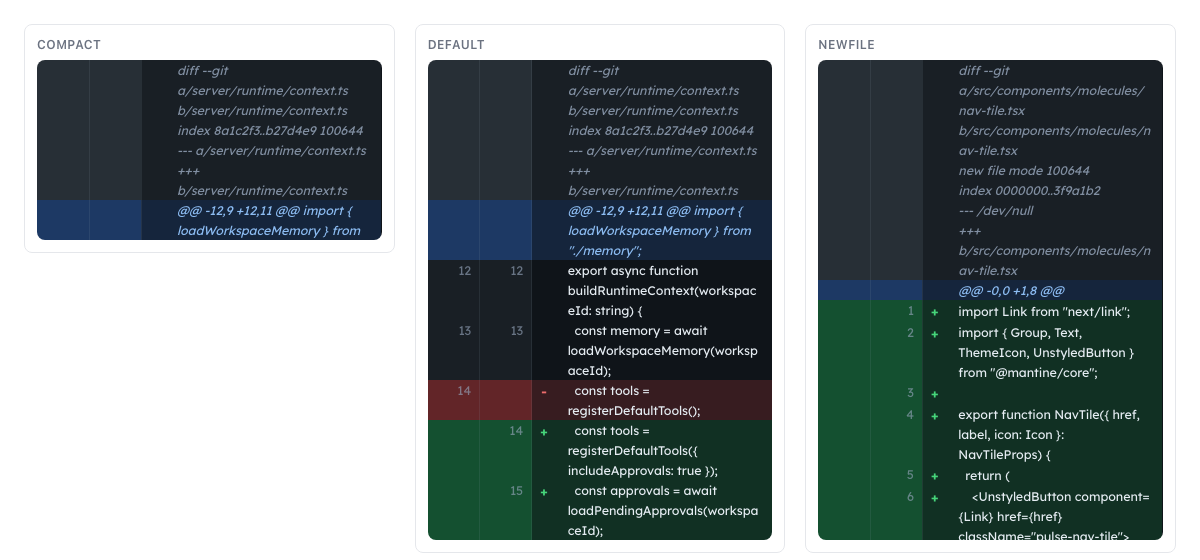
When the agent edits code, changes are shown as a reviewable diff before they land — compact, default, and new-file views side by side.
Sync across devices
Files sync across your devices. You can pin a file to keep it available locally and unpin it when you no longer need it on a given device. When the same file changes in more than one place, Pulse handles conflict resolution so you do not silently lose edits.
This makes the workspace file system feel local on each device while remaining a single shared source of truth.
TIP
Pin the files you are actively working on so they stay available offline on that device; unpin large or finished files to reclaim local space without removing them from the workspace.
Previews
Files open in a detail drawer with rich in-app previews — no download needed to check the contents:
- PDF — continuously scrolling pages with zoom and fit-to-width controls
- Office documents — Word, Excel (with sheet tabs), and PowerPoint (slide by slide) render inline; a banner reminds you the preview is approximate and the exact layout needs the real application
- HTML artifacts — a sandboxed full-screen preview with Desktop / Tablet / Mobile viewports and export to HTML or PDF
- Markdown and text — a Preview / Edit toggle with inline saving
- Plus images, JSON, and draw.io diagrams
From the same drawer you can download a file, convert Markdown to PDF or DOCX, or attach it to a chat message.
Sharing
Sharing is per person and per level. Open a file's detail view and choose Share: pick teammates (or everyone in the organization) and a permission:
| Level | Grants |
|---|---|
| Read | View only (web: pick Read from the share dialog's dropdown; mobile: tap the View chip in the file's share sheet) |
| Write | Edit the file (web: pick Write from the dropdown; mobile: tap the Edit chip) |
| Manage | Also delete and re-share (web: pick Manage from the dropdown; mobile: tap the Manage chip — both platforms expose all three levels for files) |
Each recipient gets a notification in their own timeline, and shared files appear under the Shared view in the file panel, alongside the workspace tree.
Access can be revoked at any time from the same dialog, and recipients can remove themselves. Sharing policies are configurable from settings, so an admin can set the defaults that govern how files leave the workspace.
The same sharing model covers todo lists, so files and work items move between teammates the same way.
Comments
Every file carries a comment thread, available to anyone the file is shared with. Open it from the comment icon in the file detail header; rows in the file list show a badge with the comment count. When someone comments on your file, Pulse posts a notice with an excerpt to your timeline — discussion stays attached to the file instead of scattering into chat.
Files in the flow of work
Artifacts the agent generates appear in your timeline and persist in the workspace. A scheduled task can produce a weekly report file; a conversation can yield a deck you then share — all within the same connected workspace.