

Todos & check-ins
A todo list your assistant actually uses. It reads and writes the same items you do, turns a sentence in the conversation into an action item, nudges you when something is due, and checks in on what needs attention today.
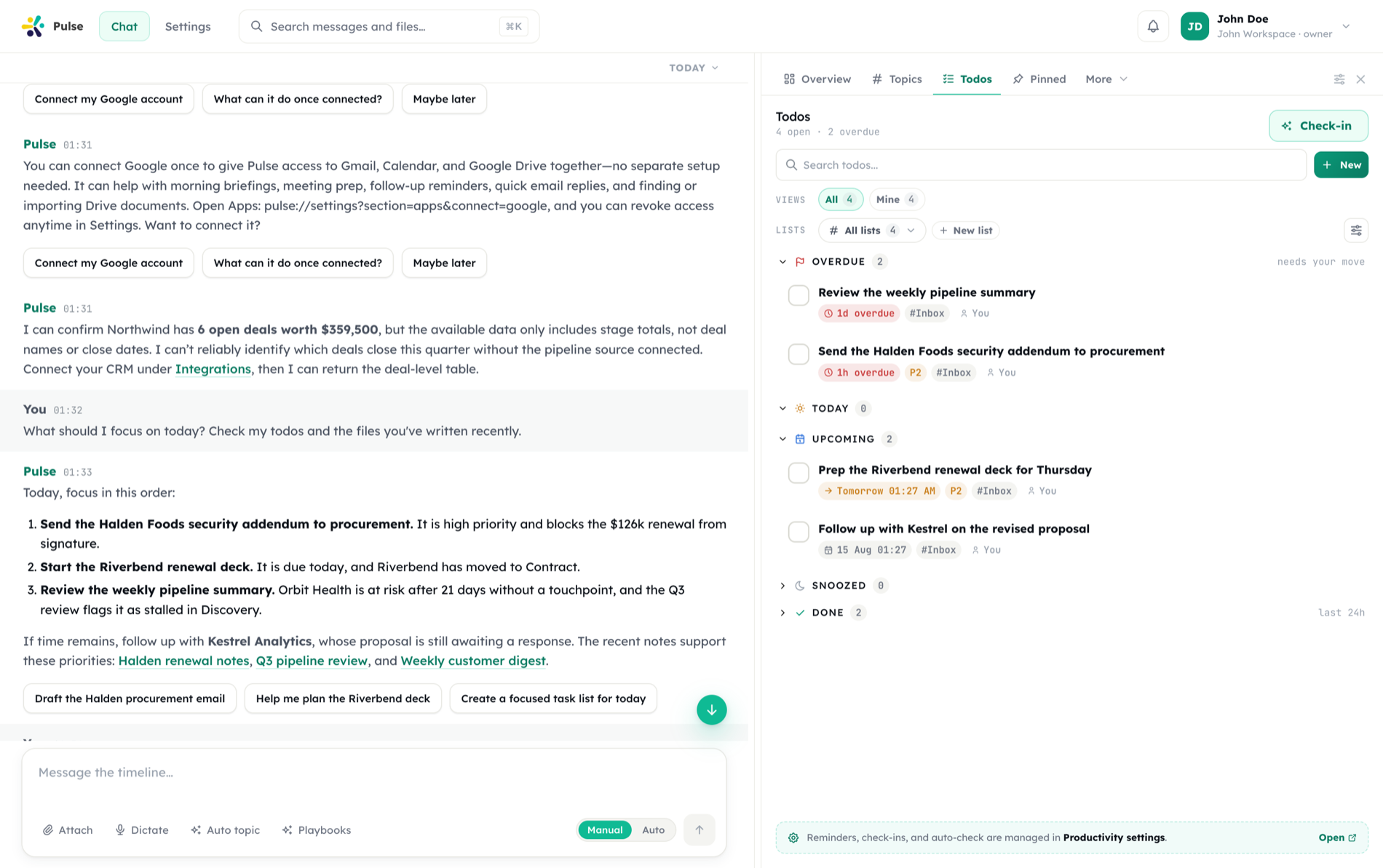
Not a separate app
Same items, same panel, whether you typed them or the assistant filed them out of a conversation.
Grouped by when, not by list
Today, Upcoming, Snoozed and Done — with lists as a filter on top rather than the primary structure.
It comes to you
Check-ins and reminders arrive on the surfaces you already watch, within your quiet hours.
Pulse has a dedicated Todos surface in the workspace panel, right next to your chat. It is not a separate app: the assistant reads and writes the same todos you do, turns conversations into action items, nudges you about what is due, and lets you delegate work to teammates.
Open it from the Todos tab in the chat workspace panel. The header shows a live summary — N open · N overdue — and a Check-in button that asks the assistant for an immediate review of what needs attention.
Anatomy of a todo
| Field | Details |
|---|---|
| Title | Required |
| Description | Optional — context, links, or acceptance criteria |
| List | Defaults to your Inbox; movable to any list |
| Due date | Optional date and time, with presets (Today, Tomorrow, This week, custom) |
| Priority | Low · Normal · High · Critical |
| Assignee | Optionally delegated to a workspace member |
| Source | A badge shows where it came from — you, Pulse, an integration, a reminder |
Create todos with the New button in the panel, or just tell the assistant:
Add a todo: review the Q3 budget draft, due Friday, high priority.Todos the assistant creates carry a Pulse badge, so you always know what was captured automatically versus entered by hand.
Lists and views
Every user starts with a default Inbox list; you can add project lists alongside it, each with its own color tone and open count. Deleting a list moves its todos back to Inbox — nothing is lost.
The panel's rail offers views that cut across lists:
- All / Mine — everything, or just what you own
- Assigned to me — work teammates delegated to you
- Waiting on — todos you delegated to others
- Shared — lists and todos others shared with you
Within a view, todos are grouped by urgency: Overdue, Today, Upcoming, Snoozed, and Done (last 24 hours).
Working through todos
Each todo supports Done, Dismiss (closed without completing — kept distinct from done), Snooze, and Reopen. Quick snooze options are 1 hour and until tomorrow 9am; via the assistant you can snooze to any time. Snoozed todos wake up automatically and return to your open list.
Snooze the invoice todo until Monday morning and mark the standup prep done.The assistant's full toolkit covers creating (including up to 50 at once — useful for turning meeting notes into action items), updating, closing, snoozing, reopening, listing, and managing lists.
Assignment
Assign a todo to a teammate from the row menu, the edit modal, or conversationally:
Assign the release-notes todo to Ayşe.When you assign a todo:
- The assignee gets edit access and the todo appears in their own Todos under Assigned to me
- They receive a message in their Pulse timeline with the title and due date
- Check-in reminders follow the assignee — Pulse stops nudging you about it and starts nudging them
- You keep manage rights and track it under Waiting on
Sharing lists
A list can be shared with teammates — or with everyone in the organization — from the Share button in its header, at three levels:
| Level | Grants |
|---|---|
| Read | View only (web: pick Read from the share dialog's permission dropdown; mobile: tap View when picking who to share with) |
| Write | Edit the todo or the list's todos (web: pick Write from the same dropdown; mobile: tap Edit when picking who to share with) |
| Manage | Also delete and manage sharing (web: pick Manage from the dropdown; on mobile the share sheet only offers View/Edit today, so granting Manage still needs the web app, though existing Manage shares still show and keep working on mobile) |
Sharing a list cascades to the todos inside it. Recipients see shared lists under the Shared view (with a shared by … label), get a timeline notification, and can leave a shared list at any time. Only the owner — or someone with manage access — can change who a list is shared with. Updates propagate live: when anyone edits a shared todo, everyone's panel refreshes in real time.
Comments
Every todo carries a comment thread, open to anyone who can see it — owner, assignee, or share recipients. Rows show a comment-count badge, and the full thread lives in the todo's detail view. When someone comments on your todo (or one assigned to you), Pulse posts a notice with an excerpt to your timeline.
Comments work the same way on files, so discussion stays attached to the thing being discussed.
Check-ins and reminders
Under Settings → Productivity you can configure daily check-in times and how assertively Pulse follows up on open items (from chill to aggressive). A check-in is a timeline message that reviews what is overdue, due today, and waiting on others — and you can trigger one on demand with the panel's Check-in button or by asking.
Todos come to the assistant, too
Because todos are exposed to the agent as tools, they participate in everything else Pulse does: a meeting can end with action items filed as todos and assigned to the right people, and a scheduled task can triage what piled up overnight.
Related
- The timeline — where notifications and check-ins land
- Files & artifacts — sharing and comments work the same way
- Meeting Agent — turn meetings into action items