

Use cases
Pulse is easiest to understand through the work it does. Every scenario below is end to end — what you say, what happens behind the scenes, and what lands back in your timeline. Use them as recipes: each prompt works as written.
Everyday essentials
Documents and decks, notes, todos and check-ins, shared lists and files.
Background agents
Meetings captured and summarised, repository work, tasks dispatched to your own devices.
Connected systems
What becomes possible once mail, calendars, chat and your trackers are connected.
They are ordered the way most people adopt Pulse: everyday essentials first (documents, notes, todos, sharing), then the background agents (meetings, code, devices), and finally the scenarios that light up once you connect external systems.
Everyday essentials
From a request to a client-ready deck
Scenario: You need a presentation for Thursday's client meeting, plus a one-page summary to send ahead.
Build a 10-slide deck introducing our onboarding service — problem,
approach, timeline, pricing. Then write a one-page summary of it
as a Word document, and give me a PDF version too.The assistant generates the actual files — a .pptx, a .docx, and a PDF — straight into Files, not a wall of text you have to paste somewhere. You preview them in the app: PowerPoint renders slide by slide, Word inline, PDF with zoom and scrolling. Ask for changes ("make slide 6 a comparison table") and the assistant revises the file in place.
When it's ready, open the deck's detail view and Share it with your team, or download it for the client. A banner on Office previews reminds you the in-app rendering is approximate — for pixel-perfect layout, open the real file.
A pile of PDFs into notes and a tracker
Scenario: Legal sent 30 vendor contracts as PDFs. You need working notes and a renewal tracker by tomorrow.
Go through the contracts folder. For each contract write a short note —
parties, renewal date, notice period, annual cost, anything unusual.
Then build an Excel tracker sorted by renewal date and flag anything
renewing in the next 60 days.The Worker Agent reads the PDFs in its sandbox (Python with PDF and spreadsheet tooling is preinstalled), writes the notes as Markdown files, and delivers the finished .xlsx alongside them in Files. Markdown notes get a Preview / Edit toggle, so you can annotate them by hand — and convert any of them to PDF or DOCX from the same menu when they need to leave the workspace.
Asking questions of a spreadsheet
Scenario: Sales dropped a 12-sheet Excel export in your Files. You need answers, not a pivot-table session.
Look at the sales export. Which region grew fastest quarter over
quarter, and which three products drove it? Add a chart.The assistant loads the workbook in its sandbox and analyzes it with real data tooling — filtering, grouping, joining across sheets — then answers in chat with the numbers, not a guess. Charts come back as real artifacts, not screenshots: it can write native Excel charts (bar, line, pie) into a new sheet of the workbook, so they stay live and editable in Excel, or render chart images to embed in a report or a deck.
Follow-up questions keep the thread going — "same view, but exclude the pilot customers" — and when the analysis settles, turn it into a deliverable:
Make this a two-slide summary for the exec review — one slide of
takeaways, one with the growth chart.Todos, reminders, and a day that runs itself
Scenario: You want one place where commitments land, and gentle pressure until they're done.
The Todos tab lives right next to your chat. Capture by hand or by asking:
Add a todo: review the Q3 budget draft, due Friday, high priority.
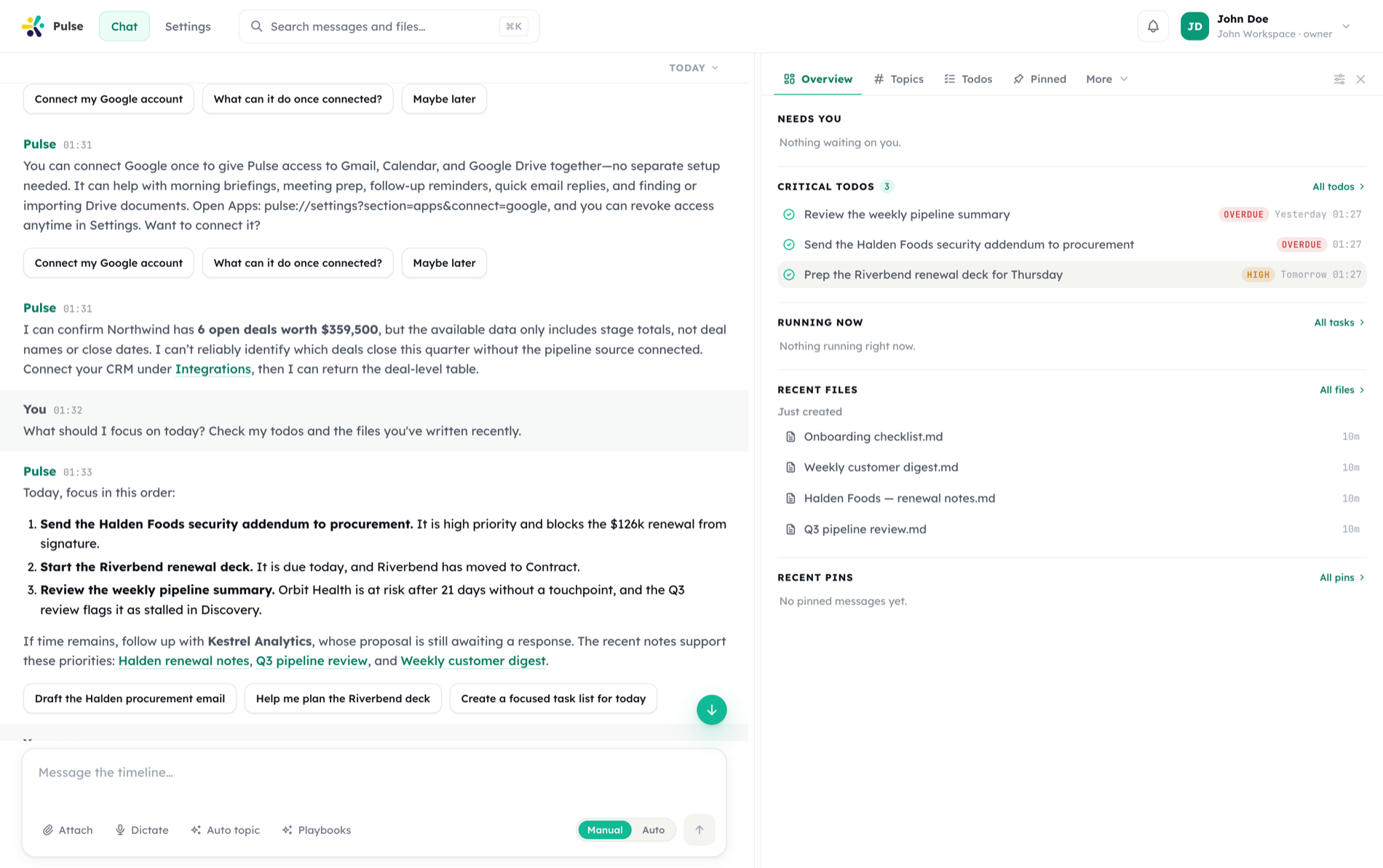
Remind me about the visa paperwork tomorrow at 9.Everything gets a due date, a priority, and a list; the panel groups items into Overdue / Today / Upcoming / Snoozed / Done. Not ready for something? Snooze it — an hour, tomorrow 9am, or any time you name — and it comes back to open by itself.
Then let the daily check-in do the chasing. Under Settings → Productivity you pick check-in times and how assertively Pulse follows up (from chill to aggressive). Each check-in is a timeline message reviewing what's overdue, due today, and waiting on others — and the panel's Check-in button triggers one on demand. On the move, capture by voice: say it, and the todo is filed with the same tools chat uses.
A shared list your team actually updates
Scenario: A product launch has a dozen moving pieces across four people.
Create a Launch list, then share it from the list header — pick the team, give them Write access. The list appears in everyone's Todos panel (labeled shared by you), each member gets a timeline notification, and edits propagate live to all of them.
Delegate the pieces:
In the Launch list, assign the press-kit todo to Deniz and the
pricing-page one to Mert, both due Wednesday.Each assignee gets a notification, sees the item under Assigned to me, and — crucially — the check-in reminders follow them, not you. You watch it all from Waiting on. Questions and status live in each todo's comment thread, so context stays attached to the item; when someone comments on a todo you own or are assigned to, an excerpt lands in your timeline.
Reviewing a document together
Scenario: You drafted a proposal and want two colleagues' input without emailing versions around.
Open the file's detail view, hit Share, and give them Write access. They're notified in their own timelines and find it under their Shared view. Feedback goes into the file's comments — each comment notifies the owner with an excerpt, the comment count shows right on the file row, and the thread stays on the file permanently. When the feedback is in, ask the assistant to apply it:
Apply Deniz's comments on the proposal — tighten the pricing section
and add the case study she mentioned.Background agents
Meetings that finish themselves
Scenario: You run a weekly product sync. You want notes, decisions, and action items handled without anyone typing minutes.
Setup (once): Enable the Meeting Agent, connect your Google Calendar, and set the auto-join policy to Ask.
What happens each week:
- Twelve minutes before the sync, Pulse posts a join request to your timeline. You tap Approve.
- The bot joins the call under your Pulse's name, waits in the lobby until admitted, and records. You can watch its live view and the participant roster from the meeting card in Tasks.
- When everyone hangs up, the bot leaves on its own, and Pulse transcribes the audio and writes structured notes: TL;DR, key points, decisions, action items, open questions.
- The summary arrives in your timeline; the notes and full transcript are saved as Markdown files in your notes folder.
Then close the loop:
Turn the action items from today's product sync into todos.
Assign the pricing-page one to Deniz and make the rest mine, due this week.The assistant files them as todos in one batch — and the shared-list mechanics above take over from there.
Pull requests without losing the afternoon
Scenario: A 40-file PR is blocking a release and the usual reviewer is out.
Review PR #214 in acme/platform. Focus on regression risk in the
billing module, check CI, and give me a merge recommendation.The Code Agent clones the repo into a sandbox on the PR's branch, reads the diff, existing review threads, CI checks and job logs — and inspects the surrounding code the diff alone doesn't show. You get a structured verdict with file/line references and an approve / request-changes / needs-discussion call. Posting it to GitHub as a formal review requires your approval first.
The follow-up that usually eats the rest of the day:
It has merge conflicts with main now. Resolve them and update the branch.The agent merges main into the PR branch, resolves conflicts semantically, runs the build and tests, and pushes the resolved branch so the PR updates. It cannot push to main and never merges the PR itself — that stays with you.
The same sandbox handles bigger analysis: ask it to "analyze our web, mobile, and api repos together and document how each handles authentication" and it clones the extra repos read-only and delivers one combined report to your Files.
Work that belongs on your device
Scenario: The input files live on your Mac, and that's where the work should happen.
With the desktop app installed, the agent can dispatch a task to that specific machine, where a local worker runtime executes it next to your local files and tools. Progress and results report back into the same timeline as cloud work — you can't tell from the thread where it ran, only that it's done.
Synced files make this seamless in the other direction too: pin the files you're actively working on so they're always available locally, and let conflict resolution handle the case where the same file changed in two places. On mobile, push notifications, voice, and approvals travel with you — a sensitive action can wait for your sign-off from your phone.
Connected systems
The Monday-morning briefing
Scenario: You want to start each week with one message that gathers everything you'd otherwise open five tabs for.
Every Monday at 8:30, send me a briefing: my calendar for the week,
open Jira issues assigned to my team, PRs waiting on my review,
and my overdue todos.Pulse registers a cron task. Each Monday the Worker Agent pulls from your connected integrations — Calendar, Jira, GitHub — plus your own todos, and posts a single digest into your timeline. The run history keeps a record of every briefing; if one fails (say, an expired Jira credential), the failure appears with its error so you can fix the connection.
Variation: ask for the digest as a file instead — "…and save it as a Markdown file in /briefings" — and each week's briefing lands in Files, building an archive.
An inbox that triages itself
Scenario: External events should become work items without you routing them by hand.
Setup: Point a webhook at Pulse from your ticketing or monitoring system, then describe the policy in chat:
When a webhook arrives from Zendesk with priority "urgent", create a
critical todo assigned to whoever is on call, and message me a one-line
summary. For normal tickets, just add them to the Support Triage list.Events flow into the runtime, the assistant applies your policy, and the right people see the right todos — with the audit trail living in the timeline.
Picking the right mechanism
| You want… | Reach for |
|---|---|
| Decks, documents, and PDFs produced as real files | Files & artifacts |
| Tracking and delegating work, with reminders | Todos & check-ins |
| Something done later or on a schedule | Tasks with a delay or cron |
| A human decision before anything sensitive | Approvals |
| Meeting capture and follow-ups | Meeting Agent |
| Repository work — code, PRs, audits | Code Agent |
| Work that must run on a specific machine | Devices & desktop |
| Work triggered by an external system | Webhooks |
The scenarios compose: a meeting produces todos, a todo review runs on a schedule, a schedule ends in an approval. That is the point of one timeline — every mechanism reports back to the same place.